Economy Basics
Table of Contents
Functionality
An economy system is all based on a currency that each viewer has. (i.e. Tokens, coins, rings, etc). So the first step is to keep track of each viewer’s currency for both earning and using in your economy.
This is done in streamerbot using a global persisted user variable. Global, meaning it can be accessed from any action, persisted, meaning it stays the same value even after restart of streamerbot, and user variable, meaning a variable tied to each viewer.
This extension first adds two basic but powerful actions for adjusting each viewer’s currency and for getting each viewer’s currency so they can easily be reused by anything else in your economy. These are made as seprate actions for 2 reasons.
- So its easier to share with others and they can just change these actions to match their own currency.
- So if you ever want to change your currency later you only need to change it here.
Then it adds a command for viewing a player’s current currency and for giving/taking currency from any viewer.
How To Make It Yourself
Full Video
Get Balance Action
Action for getting viewer’s currency. It can get from the target1 or redeemer2.
I designed it this way to both make it more flexible and because, youtube for example, can’t do target user1 but things like a streamerbot deck can’t do redeemer2.
1. Add Action
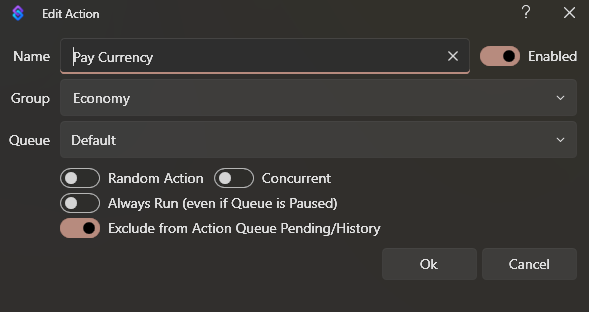
First you need an action for getting each viewer's current balance. So create a basic action for this.
Add Action
Name: Get Balance
Whatever you wanna name the action for getting the currency of a viewer
Group: Economy
Group name for your economy actions
Exclude from Action Queue Pending/History: Marked On
Since this is an action that will be used only by other actions we can exclude it from action history since the other action will show up in action history.
2. Check If Redeemer and Get Currency
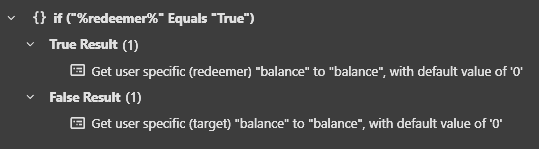
Then when using this action you may want to get the currency of the target1 or redeemer2. We are going to do this very simply using an argument set by the action calling this action.
So add an If/Else statement
Core > Logic > If/Else
Input: %redeemer%
The argument set by the action calling this action if it wants the currency of the redeemer2 or the target1
Operation: Equals
Value: True
Then in the True result of the If/Else add a Global (Get) sub-action to get the balance of the redeemer
Core > Globals > Global (Get)
Source: User (Redeemer)
The currency is from the redeemer2
Presisted: marked as on
Meaning the currency won’t reset with streamerbot closing
Variable Name: whatever you want the currency to be called internally (i.e. balance)
This is NOT what viewers see, this is just for you. If you want to use my extensions without having to change this on them as well, set this to balance.
Destination Variable: same as Variable Name (i.e. balance)
This is the local name of the currency, easier to just match to the global
Default value: 0
whatever you want a viewer to have if they have never earned any currency from your economy yet
Then in the False result of the If/Else add another Global (Get) sub-action to get the balance of the target
Core > Globals > Global (Get)
Source: User (Target)
The currency is from the target1
Presisted: marked as on
Meaning the currency won’t reset with streamerbot closing
Variable Name: whatever you want the currency to be called internally (i.e. balance)
This is NOT what viewers see, this is just for you. If you want to use my extensions without having to change this on them as well, set this to balance.
Destination Variable: same as Variable Name (i.e. balance)
This is the local name of the currency, easier to just match to the global
Default value: 0
whatever you want a viewer to have if they have never earned any currency from your economy yet
Pay Currency Action
Action for adjusting a viewer’s currency. Defaults to taking away (subtracting) the given amount but you can give a negative amount to effectively add.
I designed it this way to allow the function to handle raw user input of cost for common commands in an economy so you don’t have to keep validating cost input in every command. 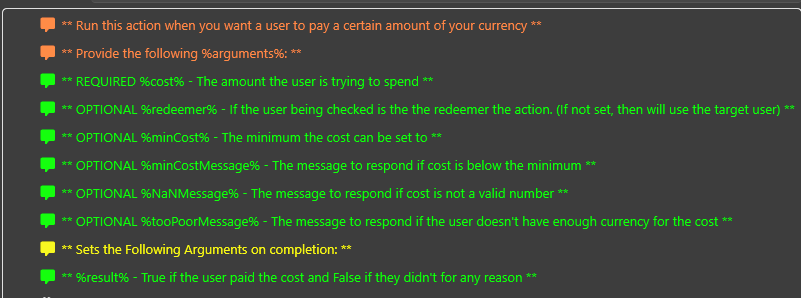
1. Add Action
Next you need an action for adjusting the balance of viewers. So create a basic action for this.
Add Action
Name: Pay Currency
Whatever you wanna name the action for adjusting the currency of a viewer. I name it Pay cuz the default will subtract from a viewer’s balance.
Group: Economy
Group name for your economy actions. (want the same group as your Get Balance Action)
Exclude from Action Queue Pending/History: Marked On
Since this is an action that will be used only by other actions we can exclude it from action history since the other action will show up in action history.
2. Check if cost is a valid number
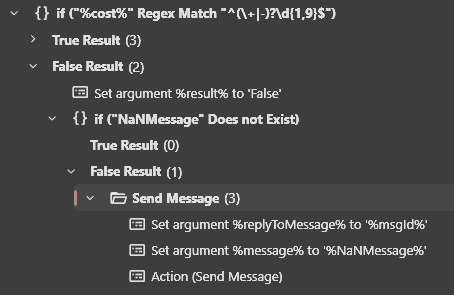
First we want to check if the cost given by the action calling this action is a valid number. This is done so that we can just give it a viewer’s inputted number if we want.
Add a If/Else statement
Core > Logic > If/Else
Input: %cost%
argument set by the action calling this action
Operation: Regex Match
Check the cost against a regular expression
Value: ^(+|-)?\d{1,9}
I highly recommend learning regular expressions but they just check if a text follows a pattern.
A simple breakdown of this one
Regex
^ the start of the text
(+|-)? match a single + or - or nothing
\d{1,9} 1 to 9 number digits
$ the end of the text
So This one checks if cost is a 1 to 9 digit number that can have a plus or minus in front of it.
Then in the False add a set argument (To let the action that called this action know we didn't actually change any currency)
Core > Argument > Set Argument
Variable Name: result
Name of the argument the action calling this action will use to see if the viewer’s currency was actually adjusted
Value: False
Then add another If/Else for checking if a message was given for an invalid number
Core > Logic > If/Else
Input: NaNMessage
The argument set if the action calling wants to send a message when an invalid number is inputted. Notice there is no % because we are using the Does not Exist Operation
Operation: Does not Exist
Checks if the message was given
Then in the False of that If/Else (because false means the message exists) send the message given.3
3. Check for a minimum cost
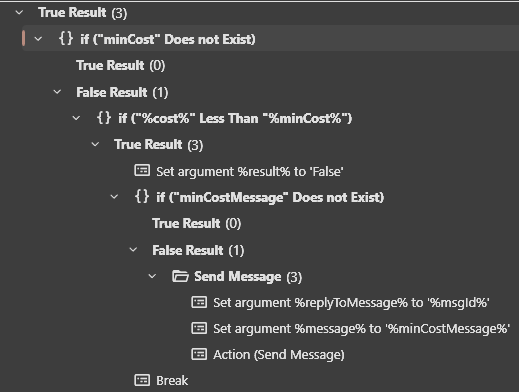
Next if it is a number we want to check if the cost is above a given minimum (if any).
In the True of step 1's If/Else add another If/Else
Core > Logic > If/Else
Input: minCost
The argument set if the action calling wants to check for a minimum cost before adjusting the viewer’s balance. (Note there is no % cuz we are checking if the variable exists by name)
Operation: Does Not Exist
Then we want to check if the cost is below that minimum cost.
In the False of that If/Else (meaning the minCost does Exist) add another If/Else
Core > Logic > If/Else
Input: %cost%
The argument set that is the cost wanting to be adjusted to the viewer’s currency
Operation: Less Than
Value:%minCost%
The argument set that is the minimum cost that is valid
Then In the True of that If/Else (%cost%<%minCost%) add a set argument (To let the action that called this action know we didn't actually change any currency)
Core > Arguments > Set Argument
Variable Name: result
Name of the argument the action calling this action will use to see if the viewer’s currency was actually adjusted
Value: False
Then add another If/Else (To check if there is a message to show when below min cost)
Core > Logic > If/Else
Input: minCostMessage
The argument set if the action calling wants to send a message when the cost inputted is less than the min cost. Notice there is no % because we are using the Does not Exist Operation
Operation: Does not Exist
Checks if the message was given
Then in the False of that If/Else send the message given3
And finally add a Break after that If/Else since the cost was too little we don’t wanna continue to adjust the currency.
4. Check if viewer has enough currency
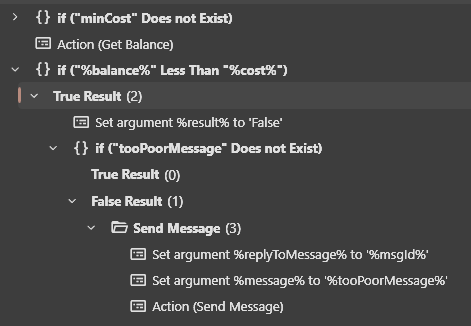
We need to check to see if the viewer has enough to pay to given cost (making it so viewers can’t have negative currency).
First we need to get the viewer's current balance which we can do by just using the action we created above. Add a Run Action.
Core > Actions > Run Action
Action: Get Balance
The action we created above for getting a viewer’s currency
Run Action Immediately: Marked as On
Turn this on so the action is run inline with this action sharing arguments and waits until its done before continuing
Then we need to check their balance agasint the given cost. Add an If/Else
Core > Logic > If/Else
Input: %balance%
The argument that is the viewer’s current currency amount. (this is set in the Get Balance action above so the name MUST match)
Operation: Less Than
Value: %cost%
The argument amount we want adjust the viewer’s currency by.
In the True of that If/Else (%balance%<%cost%) add a set argument (To let the action that called this action know we didn't actually change any currency)
Core > Arguments > Set Argument
Variable Name: result
Name of the argument the action calling this action will use to see if the viewer’s currency was actually adjusted
Value: False
Then add another If/Else (To check if there is a message to show when the viewer doesn't have enough currency for the cost)
Core > Logic > If/Else
Input: tooPoorMessage
The argument set if the action calling wants to send a message when the cost is more than viewer’s currency. Notice there is no % because we are using the Does not Exist Operation
Operation: Does not Exist
Checks if the message was given
Then in the False of that If/Else send the message given.3
5. Adjust the viewer’s currency
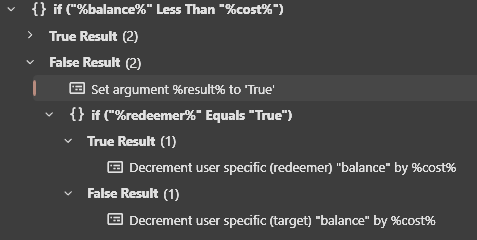
First add a Set Argument to the False of the If/Else at start of step 4 (%balance%<%cost%) (To let the action that called this action know we are actually changing the viewer's currency)
Core > Arguments > Set Argument
Variable Name: result
Name of the argument the action calling this action will use to see if the viewer’s currency was actually adjusted
Value: True
Then add another If/Else (To check if we are adjusting the redeemer or target)
Core > Logic > If/Else
Input: redeemer
The argument set if we are adjusting the currency of the redeemer2 as opposed to the target1
Operation: Equals
Value: True
Then in the True of tha If/Else (%redeemer%==True) add a Global (Set) (To adjust the currency of the redeemer)
Core > Globals > Global (Set)
Destination: User (Redeemer)
Set to the redeemer2 of the calling action.
Persisted: Marked as On
On so the viewer’s currency doesn’t reset when streamerbot closes
Variable Name: balance
The name of your variable for your currency. MUST match the name you used in the Get Balance action above.
Dropdown Box: Decrement
Set to subtract the cost from the viewer’s currency as the default behavior.
Decrement: %cost%
The argument that is the amount to actually adjust the viewer’s by, set by the action calling this action.
Then Inside the False of the same If/Else add another Global (Set) (To adjust the currency of the target)
Core > Globals > Global (Set)
Destination: User (Target)
Set to the target1 of the calling action.
Persisted: Marked as On
On so the viewer’s currency doesn’t reset when streamerbot closes
Variable Name: balance
The name of your variable for your currency. MUST match the name you used in the Get Balance action above.
Dropdown Box: Decrement
Set to subtract the cost from the viewer’s currency as the default behavior.
Decrement: %cost%
The argument that is the amount to actually adjust the viewer’s by, set by the action calling this action.
Add Currency Command
Command & Action for actually adjusting a viewer’s currency for use by the streamer and possibly mods.
1. Create Name of your Currency
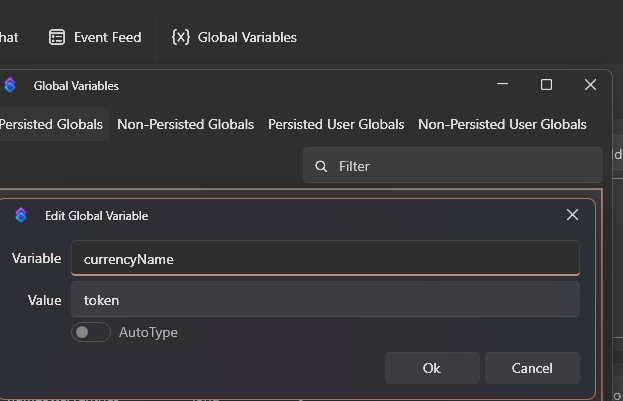
Create 2 Global Variables for the name of your currency for the viewers to see! Making them global variables makes it much easier if you want to rename your currency at any point.
Click Global Variables at the top, then Persisted Globals, then right click in table and click ‘Add’.
Then add a variable for the singular name of your currency and one for the plural name of your currency.
Add Global Variable
Variable currencyName
The name of the variable for the singular name of your currency
Value token
The singular name of your currency
Add Global Variable
Variable currencyNamePlural
The name of the variable for the plural name of your currency
Value tokens
The plural name of your currency
2. Create Command for Add Currency
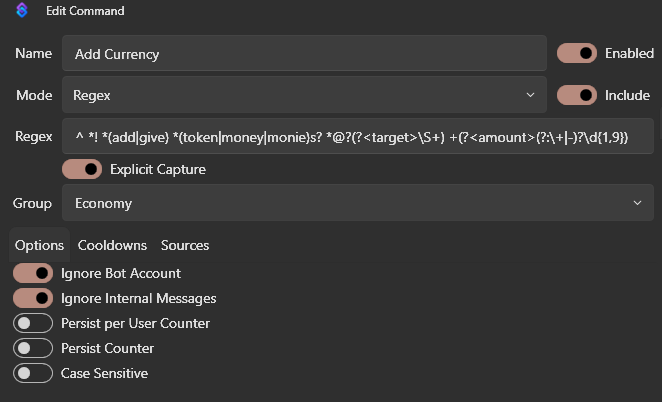
Go to Commands and add a new command for adding currency.
Add Command
Name: Add Currency
The name of this command in streamerbot. This name is just for you and viewers won’t see it.
Mode: Regex
I recommend a regex for better command control but I will also explain how to adjust if you do normal instead
Regex: ^ *! *(add|give) *(token|money|monie)s? *@?(?<target>\S+) +(?<amount>(\+|-)?\d{1,9})
Regex for getting the command and the viewer to add to and amount to add. Full breakdown below.
Explicit Capture Marked as On
Makes the regex only capture groups we have named or numbered
Group Economy
Name for group for all your economy commands to keep it better organized
You can set the grant type to Deny to only allow the streamer to use the command or you can set it to Allow and add Moderators so only Mods and the streamer can use the command.
The Regular Expression Breakdown (And what to change for your currency name)
^ *! *(add|give) *(token|money|monie)s? *@?(?<target>\S+) +(?<amount>(\+|-)?\d{1,9})
^ *! *
Start the command with a ! with any number of spaces before and after it.
(add|give) *
add or give text to start the command with any number of spaces after it
(token|money|monie)
CHANGE THIS! The possible names for the currency. default is token or money or monie. put any you want all seperated by a |. (i.e. (coin|gold) or (cash) or (blood|drop|blooddrop))
s? *
Allow an s after the currency name and any number of spaces
@?(?<target>\S+) +
Captures any number of non-whitespace characters followed by one or more spaces not including a single leading @ if any. (aka, the viewer being targeted).
(?<amount>(\+|-)?\d{1,9})
Captures 1 to 9 number digits that can have a +, -, or nothing in from of it. (aka the amount to add)
Example Regular expressions
Example Regex
^ *! *(add|give) *(coin|gold)s? *@?(?<target>\S+) +(?<amount>(\+|-)?\d{1,9})
Matches !addcoins @KitzyAngel 100 or !givegold @BatzyKitty -10 or !givecoin @Onion 10
^ *! *(add|give) *(token|money|monie)s? *@?(?<target>\S+) +(?<amount>(\+|-)?\d{1,9})
Matches !addtokens @KitzyAngel 100 or !givemonies @BatzyKitty -10 or !addtoken @Onion 10
^ *! *(add|give) *(cash) *@?(?<target>\S+) +(?<amount>(\+|-)?\d{1,9})
Matches !addcash @KitzyAngel 100 or !givecash @BatzyKitty -10 or !addcash @Onion 10
^ *! *(add|give) *(cash)s? *@?(?<target>\S+) +(?<amount>(\+|-)?\d{1,9})
Matches !addcash @KitzyAngel 100 or !givecash @BatzyKitty -10 or !addcash @Onion 10
3. Create Action for Add Currency Command
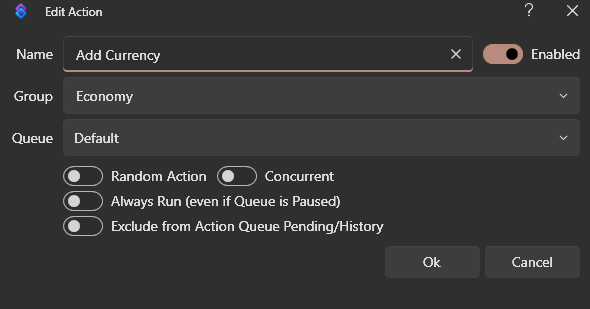
Add a new Action for the add currency command
Add Action
Name Add Currency
Name of the action can be whatever you want.
Group Economy
Name of the group the action is in can be whatever you want but I recommend the same group you have put the other 2 actions so far in.
Add Trigger to the action of the command created in step 2 through Core > Commands > Command Triggered
4. Check if a valid viewer was given
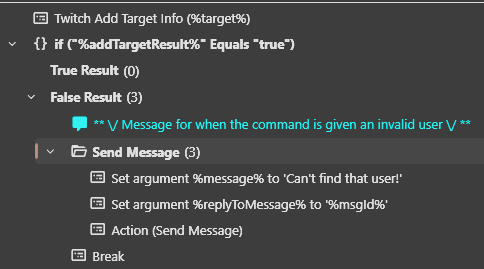
Get the viewer for the target of the command. (I use Sub-Action Twitch -> User -> Get User Info For Target for a Twitch command but any Get User Info Sub-action should work)<a href="#footnotes3" title='Youtube doesn't have a Get User Target Info Sub-Action so it requires a tiny bit of code to rework both Pay Currency and Get Balance Actions shown on the Youtube Economy Changes Page'>4</a>
Twitch/Kick > User > Get User Info for Target
User Login: %target%
If you use the regex from about the variable will be %target% for the name of the capture group. If you use a normal command then the variable will be %input0% for the first input in the command.
Then add an If/Else to check if they exist.
Core > Logic > If/Else
Input: %addTargetResult%
The variable given by Get User Info for Target that is true if a viewer was found
Operation: Equals
Value: True
Then in the false send a message3 that the viewer was not found if you want and Add a Break to stop since you can’t add currency to an invalid viewer.
5. Add the currency to the viewer
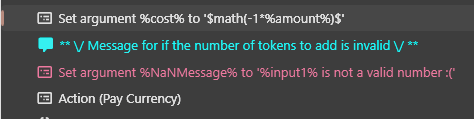
Set Argument for the amount to add
Core > Arguments > Set Argument
Variable Name: cost
The name of the argument to be used by the pay currency action. this MUST match the variable used in that action above.
Value: $math(-1*%amount%)$
The amount given times -1 so it adds it instead of subtraction with the pay currency action. (If you used the regex above it will be %amount% but if you want to use a normal command it should be %input1% for the 2nd input in the command)
(OPTIONAL) If you have a normal command instead of Regex then you could get a not valid number so you can add a message for it that happens by adding this set argument
Core > Arguments > Set Argument
Variable Name: NaNMessage
The name of the argument to be used by the pay currency action. this MUST match the variable used in that action above.
Value: %input1% is not a valid number :(
The message to send if an invalid number was inputted
Then finally run the action you made above (Pay Currency) to actually adjust the viewer's currency.
Core > Actions > Run Action
Action: Pay Currency
The action you created above to adjust a viewer’s currency.
Run Action Immediately: Marked as On
Run the action inline so it waits for completeion and gets the arguments from it
6. Send Response Message
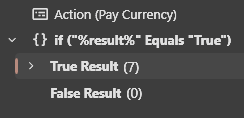
First make sure it actually added the currency by adding an If/Else.
Core > Logic > If/Else
Input: %result%
The variable given by Pay Currency that is if it succeded or not. MUST be the same as the name in the action above.
Operation: Equals
Value: True
Then in the True send a message3 that it succeded with any info you may want. Below is an example message and how to get all the parts.
7. (OPTIONAL) Get more info for sending message
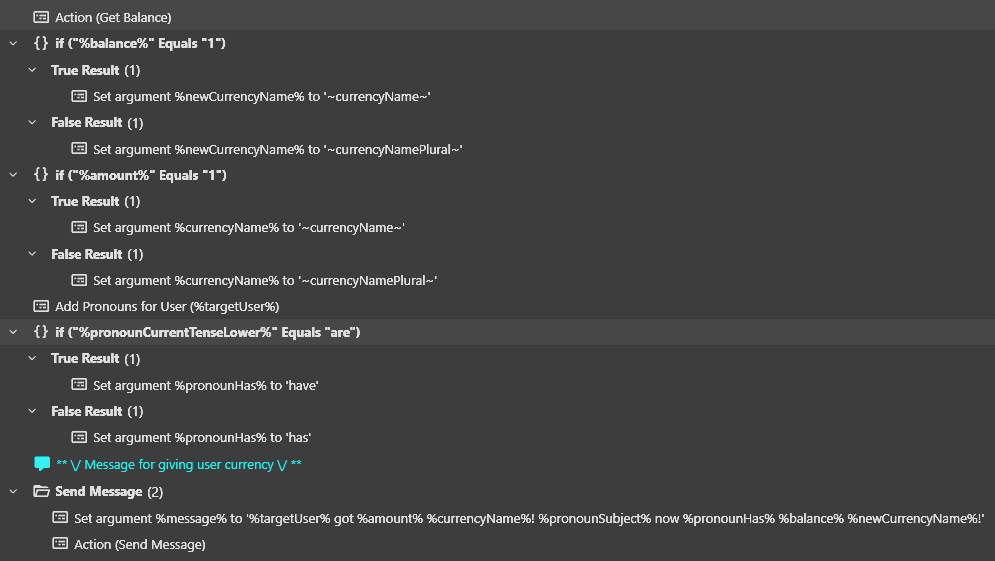
First lets grab the new balance of the viewer by running our Get Balance Action
Core > Actions > Run Action
Action: Get Balance
The action we created above for getting a viewer’s currency
Run Action Immediately: Marked as On
Turn this on so the action is run inline with this action sharing arguments and waits until its done before continuing
Then Lets figure out if the new balance is singular or plural with an If/Else, and set an argument to the correct word for use later.
Core > Logic > If/Else
Input: %balance%
The new balance of the viewer
Operation Equals
Value 1
True (aka Singular)
Core > Arguments > Set Argument
Variable Name: newCurrencyName
Unquie name for the word to use for the viewer’s current balance.
Value: ~currencyName~
The global variable set to the singular name of your currency
False (aka Plural)
Core > Arguments > Set Argument
Variable Name: newCurrencyName
Unquie name for the word to use for the viewer’s current balance.
Value: ~currencyNamePlural~
The global variable set to the plural name of your currency
Then Lets repeat that but for the amount being added to find out if its plural or singular and store it.
Core > Logic > If/Else
Input: %amount%
The amount being added to the viewer’s currency
Operation Equals
Value 1
True (aka Singular)
Core > Arguments > Set Argument
Variable Name: currencyName
Unquie name for the word to use for the amount being added.
Value: ~currencyName~
The global variable set to the singular name of your currency
False (aka Plural)
Core > Arguments > Set Argument
Variable Name: currencyName
Unquie name for the word to use for the amount being added.
Value: ~currencyNamePlural~
The global variable set to the plural name of your currency
Next get the viewer's pronouns and set an argument for if they use has/have (since it doesn't store that one automatically).
Integrations > Pronouns > Add Pronouns for User
User Login: %target%
The viewer being targeted by the command. If you did a normal command instead of regex this should be %input0% for the first input of the command
Core > Logic > If/Else
Input: %pronounCurrentTenseLower%
Variable that stores if the viewer’s pronouns use ‘are’ or ‘is’.
Operation Equals
Value are
Check agasint ‘are’ because if they use ‘are’ then they use ‘have’ and if not they use ‘has’
True (aka uses ‘are’)
Core > Arguments > Set Argument
Variable Name: pronounHas
Unquie name for the word to use of has/have.
Value: have
False (aka uses ‘is’)
Core > Arguments > Set Argument
Variable Name: pronounHas
Unquie name for the word to use of has/have.
Value: has
Then a message you could send with all of the above would be:
%target% got %amount% %currencyName%! %pronounSubject% now %pronounHas% %balance% %newCurrencyName%!
which could result in this for example:
KitzyAngel got 10 tokens! She now has 145 tokens!
Add Show Balance Command
Command & Action for a viewer to see their own amount of currency
1. Create Command for Showing currency
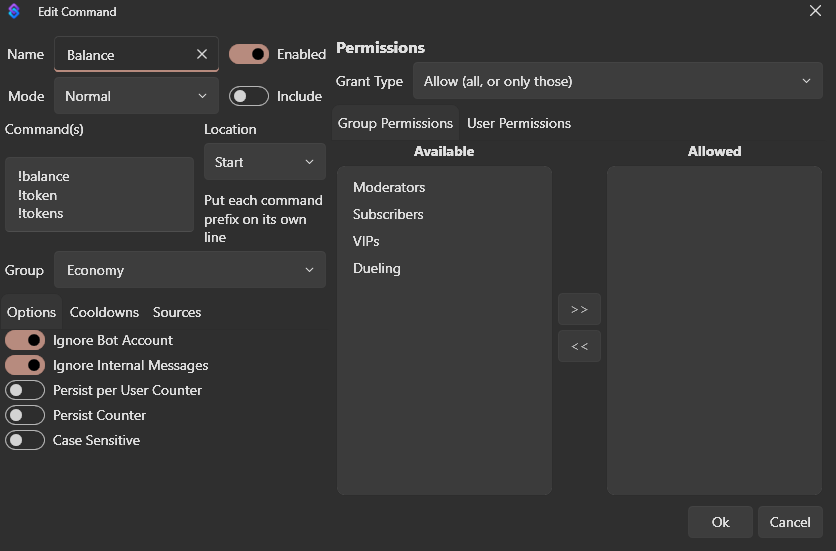
First go to Commands and Add a new command for showing a viewer's amount of currency.
Add Command
Name: Balance
The name of the command. This is for you only
Mode Normal
Since this is a very simple command there is no benefit to Regex
Command(s) !balance
Commands you want viewers to type in to see their current currency
Group Economy
Name of group the command is in. I recommend putting it in the same group as your other economy commands
Grant Type Allow
Who can use this command. Since it only affects themselves you can let anyone use it without risk.
2. Create Action for Show Currency command
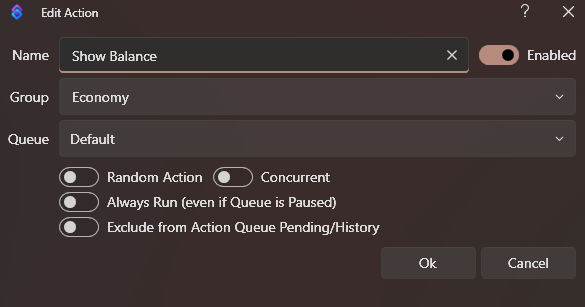
Next go to Actions and Add a new action for the above command
Add Action
Name: Show Balance
The name of the action. This is for you only
Group Economy
Name of group the action is in. I recommend putting it in the same group as your other economy actions
Then Also add a Trigger to this action Core > Commands > Command Triggered for the command created in Step 1.
3. Get the balance of the redeemer

Just set an argument for the Get Balance action you created above to grab from the redeemer
Core > Arguments > Set Argument
Variable Name: redeemer
The name of the argument to let the Get Balance Action created above know you want the redeemer’s currency. MUST match what you had above.
Value True
Then simply run the Get Balance Action created above to get their amount of currency,
Core > Actions > Run Action
Action: Get Balance
The name of the action created above to get the amount of currency a viewer has.
Run Action Immediately Marked As On
Marked on to run inline and wait until down getting the arguments from it
4. Send message with the viewer’s currency
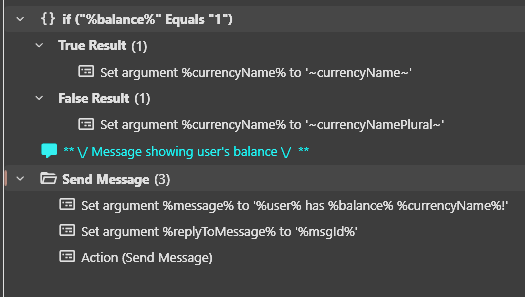
Send a message3 to whatever platform you want with the balance you got in step 4.
For an example first get if the balance is singular or plural by adding an If/Else
Core > Logic > If/Else
Input: %balance%
The new balance of the viewer
Operation Equals
Value 1
True (aka Singular)
Core > Arguments > Set Argument
Variable Name: currencyName
Unquie name for the word to use for the viewer’s current balance.
Value: ~currencyName~
The global variable set to the singular name of your currency
False (aka Plural)
Core > Arguments > Set Argument
Variable Name: currencyName
Unquie name for the word to use for the viewer’s current balance.
Value: ~currencyNamePlural~
The global variable set to the plural name of your currency
Then a message you could send with the above would be:
%user% has %balance% %currencyName%!
which could result in this for example:
KitzyAngel has 1 token!
1 Target is who the action using this action got using a ‘Get Target User’ Sub-Action
2 Redeemer is who is using the command or other trigger of the action using this action.
3 You can always just send a message through twitch or whatever platform you want but I use another action called Send Message Explained here for compability with other extensions and platforms.
4 Youtube doesn’t have a Get User Target Info Sub-Action so it requires a tiny bit of code to rework both Pay Currency and Get Balance Actions explained here.
Premade Extension
Short Video
1. Import the extension
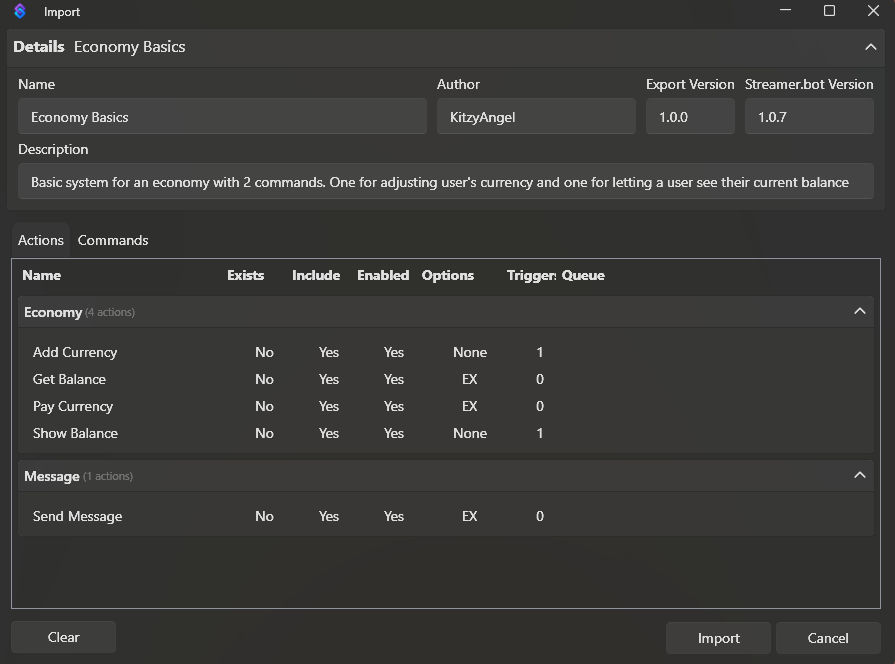
Download the extension. Then click Import at the top of streamerbot and drag the file into the box. Then click Import then Ok.
2. Create Name of your Currency
Create 2 Global Variables for the name of your currency for the viewers to see! Making them global variables makes it much easier if you want to rename your currency at any point.
Click Global Variables at the top, then Persisted Globals, then right click in table and click ‘Add’.
Then add a variable for the singular name of your currency and one for the plural name of your currency.
Add Global Variable
Variable currencyName
The name of the variable for the singular name of your currency
Value token
The singular name of your currency
Add Global Variable
Variable currencyNamePlural
The name of the variable for the plural name of your currency
Value tokens
The plural name of your currency
3. Setup the commands

Setup command for showing balance. Edit Balance Command
Edit Command
Enabled Marked as On
Mark enabled so the command works
Commands !token
Set to any commands you want for people to see their balance of currency. (i.e. !tokens !token & !balance if your currency is tokens or !rings !ring & !balance if its rings)
Setup command for adding currency to viewers. Edit Add Currency Command
Edit Command
Enabled Marked as On
Mark enabled so the command works
Regex ^ *! *(add|give) *(token|money|monie)s? *@?(?<target>\S+) +(?<amount>(+|-)?\d{1,9})
Change the (token|money|monie) part in the parenthese to any words for your currency all seprated by | like in the default. If you want more of an expliation and/or full breakdown check up here
4. (OPTIONAL) Change messages

Look for blue comments that start with “\/ Message” for places for messages to change. This extension has these ones:
- Message showing viewer’s balance for Balance Command (in Show Balance Action)
- Message for when Add Currency command is given an invalid viewer (in Add Currency)
- Message for when Add Currency adjusts a viewer’s currency (in Add Currency)
- Message for if an invalid number was put into the Add Currency Command (in Add Currency, only if using normal instead of regex for Add Currency Command)
5. (OPTIONAL) Change to another platform than twitch

The Add Currency Action gets Twitch User info so you could replace that with Kick (The very first sub-action), look here to see how to make it work for youtube, or get a little more complicated and make it work for multiple <3

Also The send message action is very basic and can easily be changed to send to another platform, look here